 Kodla
KodlaKodla › Guides
How to make a QR code with your logo
A logo in the middle tells people whose code it is before they scan it — on a menu, a flyer or packaging. Kodla places the logo, raises error correction so the code stays readable and test-scans the result before saving.
Step by step
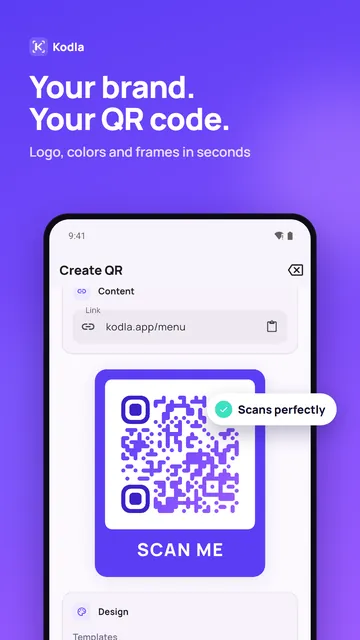
- Open Kodla on the «Create» tab, keep «QR code» selected and choose what the code opens: «Link», «Contact», «Social» and more. Fill in the «Content» card.
- In the «Design» section pick a look in «Templates», or set «Pattern», «Corners» and «Color» yourself.
- Next to «Logo» tap «Add logo» and choose the image from your gallery. Kodla puts it in the centre and switches the code to the highest error-correction level.
- Optionally choose a «Frame»: «Card» adds a «SCAN ME» caption under the code. Your own «Frame text» and the «Label» frame are Pro.
- In «Export» choose the format: PNG for messengers and social media (free), SVG or an A4 PDF for print (Pro).
- Tap «Save image» (PNG goes to the gallery) or «Share» (this is how SVG and PDF are sent). Kodla test-scans the code first; if the check fails, tap «Fix automatically» or try a simpler logo.
So the logo doesn't break the code
- Use a simple, square logo: an icon or initials read better than a long wordmark. A PNG with a transparent background looks cleanest.
- Keep the code dark on a light background. Many scanners can't read a light pattern on a dark background.
- Before printing a batch, print one copy and scan it with two or three different phones.
- The logo is a Kodla Pro feature. In the free version you can try it in the preview; when you save, Kodla offers «Get PRO» or «Save basic version» without the logo.
Another guide
How to put a QR code on a photo
Place a QR code on your own picture in about a minute: pick a photo, move and resize the code, remove the white box and save in high resolution.
Wi-Fi QR code: guests join without typing the password
Create a QR code that connects phones to your Wi-Fi without typing the password. Print it for a café, office or home. Free Android app.
QR business card: your contact saved in one scan
Make a QR code that saves your name, phone, email and company straight to contacts. For a business card, badge or email signature. Free Android app.
QR code for Instagram, Telegram and WhatsApp
Make a QR code that opens your Instagram profile, Telegram channel or WhatsApp chat. Enter a username, style the code and print it. Free Android app.
Barcode generator: EAN-13, Code 128 and more
Make EAN-13, Code 128, UPC-A, Data Matrix and other barcodes on Android. Enter the data, check the preview and save a PNG for labels and price tags.