 Kodla
KodlaKodla › Guides
How to put a QR code on a photo
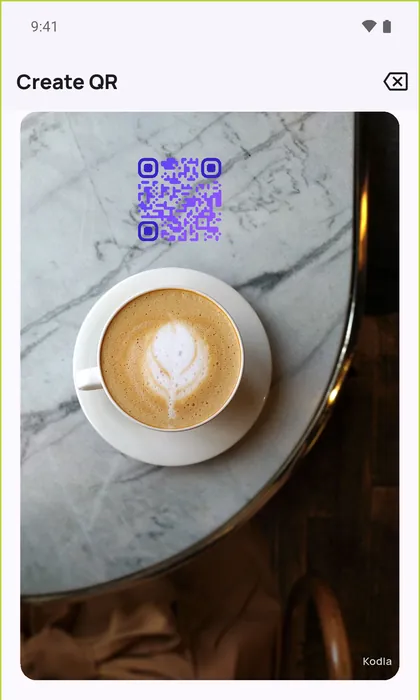
A QR code placed on a product shot, a café table or a poster looks better than a separate white square. With Kodla you do it on your phone in about a minute.
Step by step
- Open Kodla on the «Create» tab and choose what the code should open: «Link», «Wi-Fi», contact, text and more.
- Pick a look in «Templates» or set your own pattern, corners and colors in «Design».
- In the «Export» section tap «Add photo» and choose a picture from your gallery.
- Drag the QR code to its place and pinch with two fingers to change its size.
- Under «QR background» choose «Transparent» to remove the white box, or keep «White» for the most reliable scan.
- Choose JPEG or PNG and tap «Save image». Kodla test-scans the code before saving.
Tips for a code that scans
- Put the code on a calm, light part of the photo: a plain table, wall or sky. Dark or busy spots make scanning harder.
- Keep it large enough. On a printed poster or menu, about 2 × 2 cm is a sensible minimum.
- A transparent background looks cleaner but needs contrast. If Kodla warns that the code may not scan, switch to «White».
- The free version adds a small Kodla watermark to the photo. Kodla Pro removes it.
Another guide
Wi-Fi QR code: guests join without typing the password
Create a QR code that connects phones to your Wi-Fi without typing the password. Print it for a café, office or home. Free Android app.
How to make a QR code with your logo
Put your logo in the centre of a QR code on your phone: pick a template, add the logo, colors and a frame. Kodla checks that the code still scans.
QR business card: your contact saved in one scan
Make a QR code that saves your name, phone, email and company straight to contacts. For a business card, badge or email signature. Free Android app.
QR code for Instagram, Telegram and WhatsApp
Make a QR code that opens your Instagram profile, Telegram channel or WhatsApp chat. Enter a username, style the code and print it. Free Android app.
Barcode generator: EAN-13, Code 128 and more
Make EAN-13, Code 128, UPC-A, Data Matrix and other barcodes on Android. Enter the data, check the preview and save a PNG for labels and price tags.